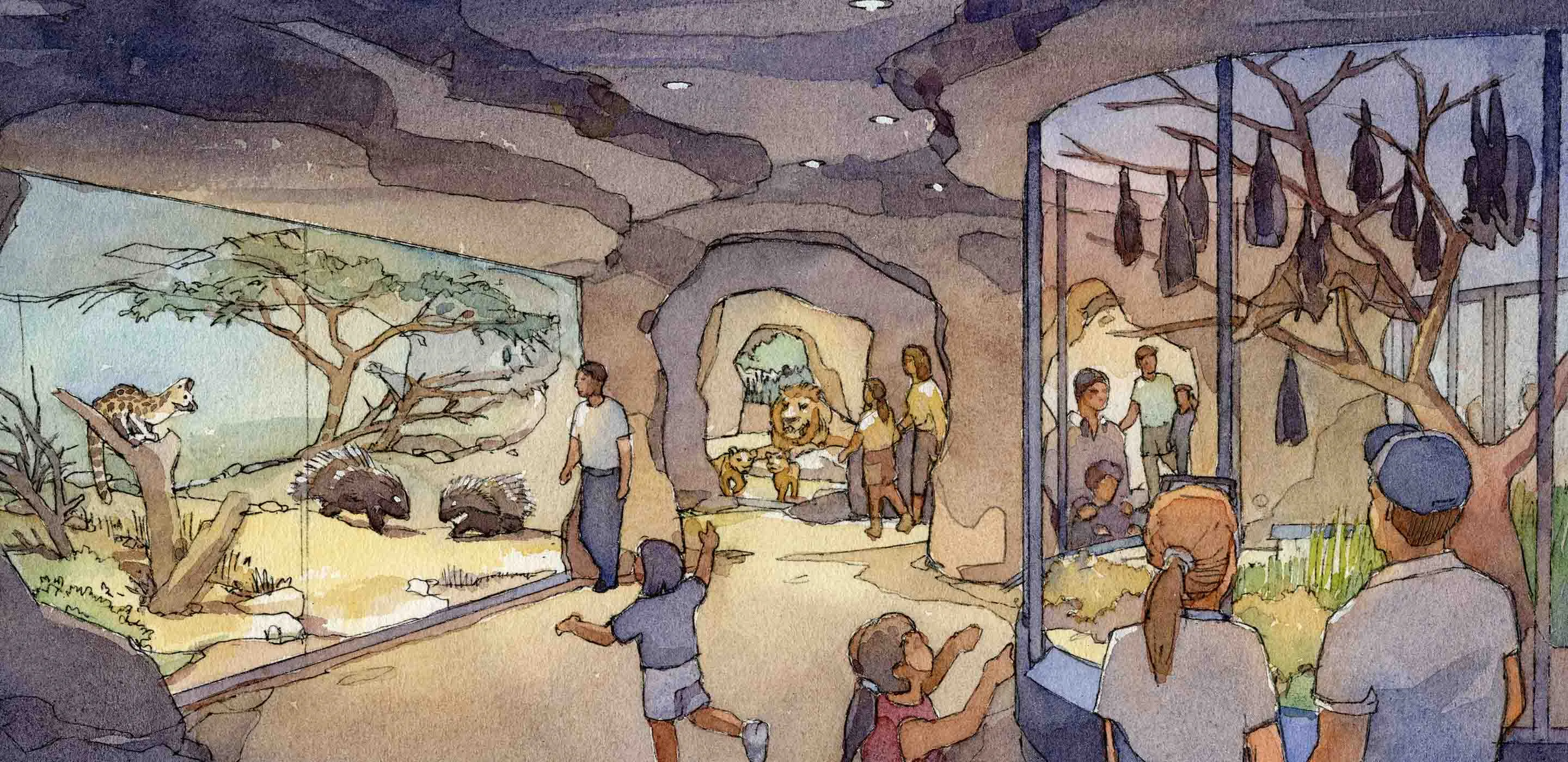
Use the Planet Zoo 2 Zoopedia to identify an animal, narrow the roster with filters and check the entry before making a habitat plan. Its public database provides species information and lets you filter by habitat type, biome, continent, conservation status and content pack. A species appearing in the database does not mean it is available in every edition or under every condition in your current zoo.
This guide reflects the pre-release position on October 12, 2026. The public Zoopedia identifies its text, images and statistics as work in progress. Treat displayed information as a planning reference and confirm the game's current values when you begin playing. Do not substitute an old Planet Zoo care table just because the same animal returns in the sequel.
Find the exact species first
Start with the animal's full name. Similar names can describe different species, and nicknames can point to several animals. An exact match is especially useful for sharks, small primates and birds, where a familiar name may hide an important distinction.
The public database offers search and both grid and list views. A grid helps with visual recognition; a list helps when you are comparing names and metadata. Neither view should replace opening the specific entry when the decision depends on care information.
A scientific name gives you another identity check. For example, the siamang is Symphalangus syndactylus. If an outside reference describes a different scientific name, stop before treating its details as this animal's requirements. You can use an alternative common name to find the right entry without assuming that every similarly named page refers to the same species.
Recognize species without treating images as care sheets
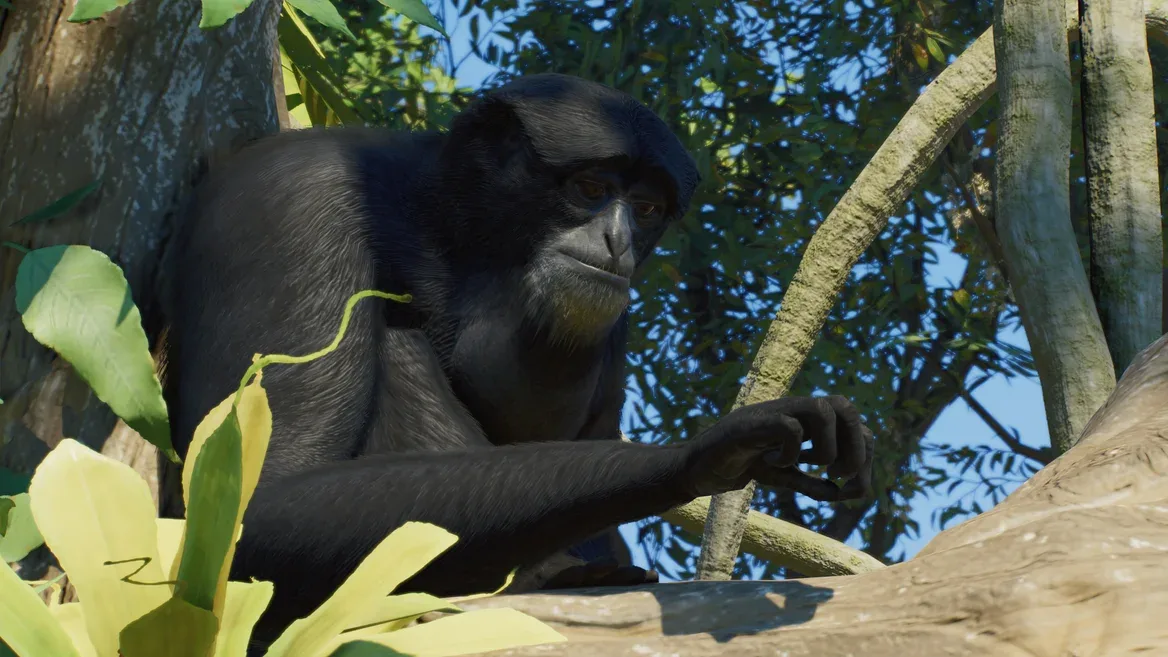
The siamang's black coat, long arms and lack of a tail help distinguish it from a monkey. That recognition is useful when you are searching the roster or comparing a picture with an entry. It does not tell you its exact climbing quantity, group limits or minimum habitat area.
An official image shows the model and may suggest a visual theme. The scenery behind an animal is not a complete construction recipe. It cannot establish which objects are functional, whether the whole enclosure is visible or how much usable space lies beyond the camera.
Use images to answer identification questions first: which animal is shown, which features distinguish it and whether it fits the species you intended. For a care decision, move from the picture to the relevant written values. Keeping those roles separate avoids the common mistake of copying an attractive scene and assuming it satisfies every requirement.
Use habitat type to narrow a building decision
Habitat type is a useful early filter because Planet Zoo 2 adds aquariums and aviaries alongside terrestrial animal homes. Begin with the kind of space you are preparing rather than a long list of animals you cannot yet accommodate.
If you are planning an aquarium, filter and inspect aquatic candidates before designing a large land enclosure. If your project is an aviary, start with the animals relevant to that habitat type. This is a way to narrow a decision, not a claim that every animal in one category shares the same care values.
Do not use taxonomic class as a substitute for habitat type. A bird's classification alone does not establish how it is housed, and aquatic animals include more than fish. Check the actual entry and habitat category. A consistent workflow begins with the building system, then compares individual species within the relevant group.
Compare biome and continent without assuming compatibility
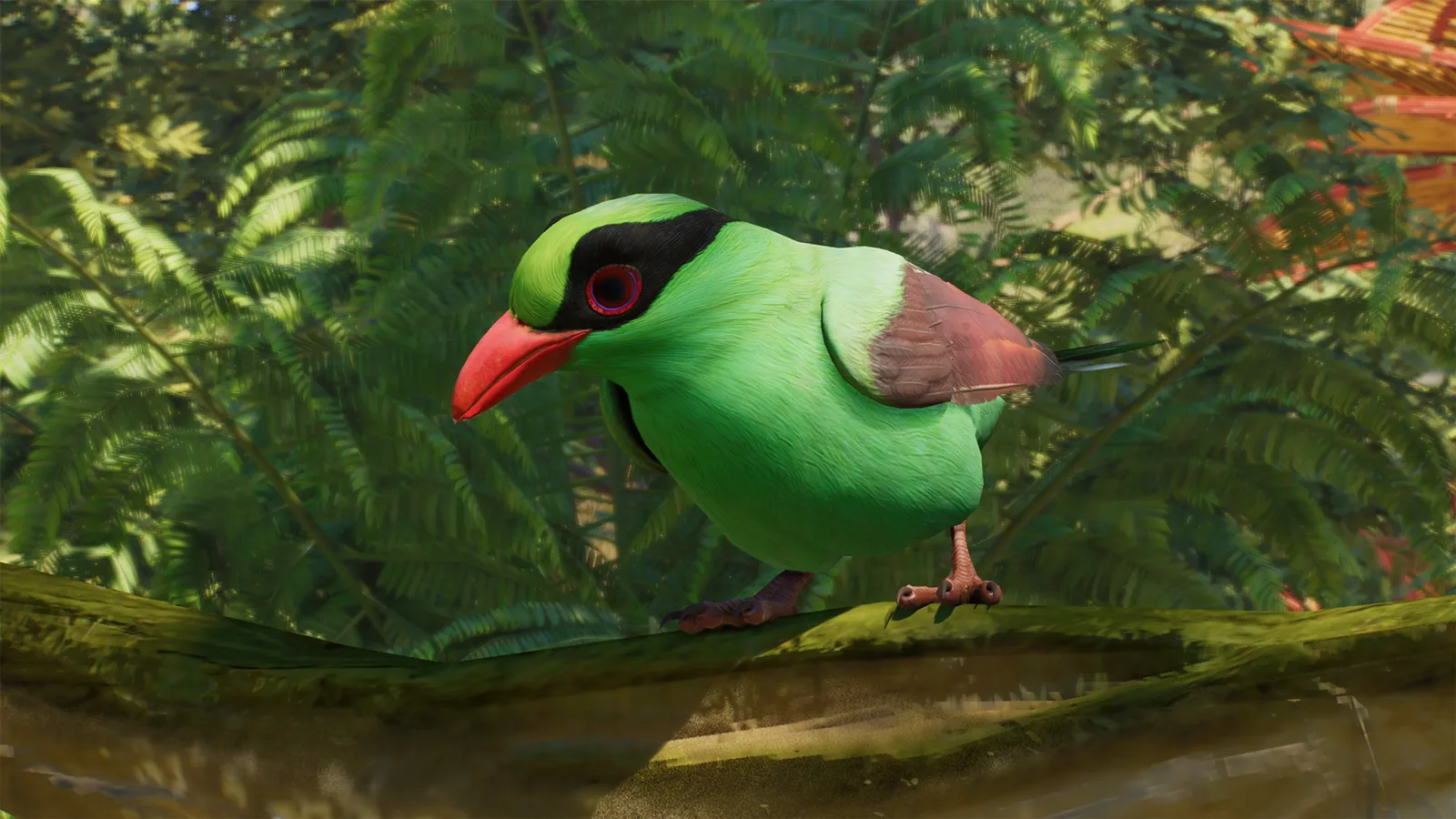
Biome and continent filters help build a thematic shortlist. You might want a geographically coherent collection or a display whose visual character fits a particular region. The Javan green magpie, for example, offers a specific species identity for a collection rather than a generic label such as 'green bird.'
A theme is not a compatibility rule. Two animals associated with the same continent can have different space, temperature, feeding and social needs. Matching a filter does not certify that they should occupy one enclosure.
Use these filters to choose candidates for separate comparison. Keep each species' requirements distinct until you have a supported reason to combine them. If the goal is a themed zoo district, adjacent habitats can communicate the theme without requiring a mixed-species home. That design option lets you preserve the idea while avoiding an unverified cohabitation claim.
Read conservation status as context
The database includes conservation status. That field helps explain the animal's real-world conservation story and can support an educational theme. It does not by itself reveal an adoption price, release reward or the difficulty of keeping the animal in the game.
Avoid interpreting an endangered label as a guaranteed economic advantage. Likewise, a less threatened species is not automatically the cheapest or easiest opening choice. Those claims require actual game values and a defined comparison.
When you plan a conservation-focused collection, use the status to understand the species and then investigate the game's relevant conservation conditions separately. Planet Zoo 2 supports Wildlife Reserves and conservation projects, but a real-world category cannot replace a project's simulated requirements. The database is most useful when each field answers its own question rather than becoming a shortcut for unrelated decisions.
Check the content pack field before building
Content pack is one of the public database's filters. It matters because the public roster includes entries with explicit pack markers. The Golden Lion Tamarin, for example, is marked Deluxe. Do not treat that listing as proof that the species is included in every player's setup.
Before completing an exhibit for a specific animal, verify that you have the relevant content access. This is separate from finding an adoptable animal, satisfying a mode's conditions or completing any supported research. A public entry establishes roster information; it does not establish every practical acquisition step.
If you are comparing editions or planning a collection, keep the pack requirement beside the animal's name in your own shortlist. That is more useful than discovering the distinction after building a detailed enclosure. Avoid inventing prices or a pack purchase recommendation from the marker alone; this guide does not provide verified current pricing.
Separate the roster from live availability
The database and the animal selection available inside a particular zoo answer different questions. The roster tells you which species are represented. Your current game context determines which animals you can actually obtain and under what conditions.
This distinction is important when a desired animal is missing from your immediate choices. Its absence there does not necessarily mean the public database is wrong or the animal has been removed from the game. Check your content and current conditions before drawing that conclusion.
A useful planning note keeps several fields separate: species confirmed, content access checked, current acquisition conditions checked and care values recorded. Do not collapse all four into a single 'available' label. That simple separation makes the next action obvious and prevents a roster page from becoming an unsupported unlock or trading guide.
Treat aquatic entries as more than fish names
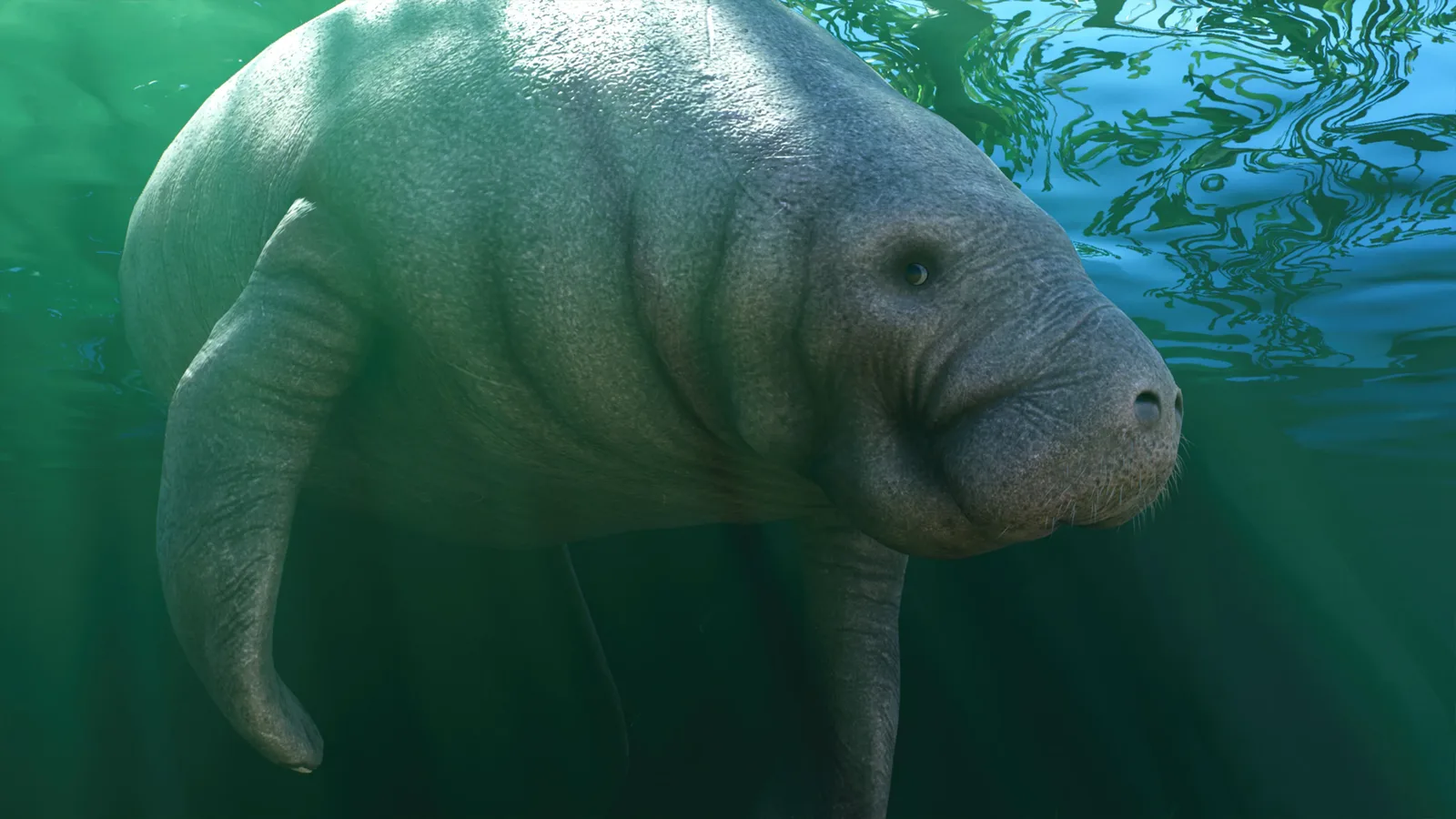
The West Indian Manatee is an example of an aquatic mammal in the public roster. Its presence illustrates why 'aquatic animals' and 'fish' should not be used as interchangeable categories. Use the entry's identity and habitat information rather than guessing requirements from a broad label.
The confirmed aquarium system includes water volume, salinity, temperature, food and maintenance considerations. However, the system's existence does not give every aquatic species identical values. Freshwater, saltwater and brackish conditions are distinct, and species information must resolve the appropriate setup.
When making an aquarium shortlist, record the actual values you need for the decision. If a public entry does not provide them, leave the comparison incomplete rather than filling the gap with a real aquarium's measurements. A visible animal image can identify a candidate without certifying that its care requirements match another resident.
Keep a decision-focused comparison
A useful comparison should include only the fields that can change your next building or adoption choice. This reduces the temptation to collect a large amount of trivia while leaving the practical question unanswered.
| Decision | Useful information to verify | Do not substitute |
|---|---|---|
| Choose the correct animal | Exact common and scientific names | A similar nickname |
| Select a habitat system | The species' habitat category | Taxonomic class alone |
| Confirm content access | The content pack marker | Presence in the public roster |
| Plan an environment | The actual species requirements | A general continent or biome label |
| Consider sharing a home | Supported compatibility information | A matching theme |
| Finalize construction | Current game values and accessible layout | A background screenshot |
If a field is missing, state that it is missing in your planning notes. An incomplete but accurate comparison is more useful than a complete-looking table with guessed values. Keep numbers in the units shown by the game and do not silently convert a land area into aquarium volume.
Recheck the entry after a material change
The public Zoopedia's work-in-progress notice matters during this pre-release period. A captured page is a snapshot, and the date you saved it is not a promise that every value will remain unchanged at release. Recheck the relevant entry before turning a draft into a final habitat.
The same principle applies when you materially change a plan. A different species, a different content pack or a larger intended group can change which information matters. Review those decisions explicitly instead of assuming that the first shortlist remains valid.
For an existing build, focus on the fields relevant to the problem you are investigating. If the concern is species identity, return to the name and image. If it is environmental suitability, inspect the current requirements. The database becomes easier to use when each visit has a concrete decision rather than a vague goal of learning everything at once.
Move from lookup to a usable animal plan
Use this sequence when starting a new exhibit: find the exact species, confirm its habitat type and content access, read the current care values, and record only the fields needed for your intended animals. Then choose the site and functional setup before investing in detailed decoration.
Keep compatibility, acquisition and conservation decisions separate when they require additional information. A Zoopedia lookup can prepare those decisions without resolving every one of them. The practical result is a shortlist you can explain: which animal you want, which system it belongs to, whether you have the content and which values still need checking.
Before final adoption, compare the game information with your prepared home. Do not let a familiar animal name, an attractive official picture or an old care sheet bypass that last comparison. The Zoopedia is most useful as a reference you actively check against your own plan.